


Cast to TV - Screen Mirroring
4.01.03K Reviews
App Specs
- Version
- 1.7.8.4
- Updated On
- License
- Free
- Downloads
- 1,000,000+
- Developer
- Video Player & Cast to TV
- Categories
- Video Players & Editors
- Platform
- Android
Screenshots
 Analysis by AppCompare
I like the simple idea behind Cast to TV - Screen Mirroring: move something that is already on your phone to a television without turning the moment into a search for cables. That can be useful when a few people want to look at the same photos, when a video is easier to enjoy from the sofa, or when you need to show something to a room. It sits in the video player and editing space, and its appeal is practical rather than flashy: make phone media more comfortable to share.
The app is free to download, though optional in-app purchases range from $6.99 to $36.99 per item. Its Everyone age rating makes it broadly accessible, while the current version, 1.7.7, gives existing users a concrete point of reference when checking whether their installation is up to date. The developer is Video Player & Cast to TV. I’d think of it as a casting helper for everyday viewing, not as a replacement for every built-in TV feature or dedicated streaming service.
What the current release is for
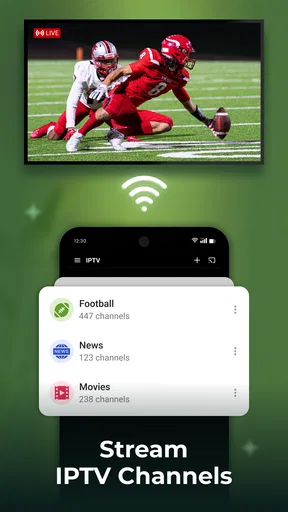
The product’s central job is clear: help you send media from a phone to a larger display. Its store summary highlights casting to smart TVs and Fire TV, including video and photos, with speed and stability as the intended strengths. In practice, the value depends on the devices you use and the network they share. A well-organized home setup can make casting feel quick; a TV that is asleep, disconnected, or on a different network can turn a one-tap plan into troubleshooting.
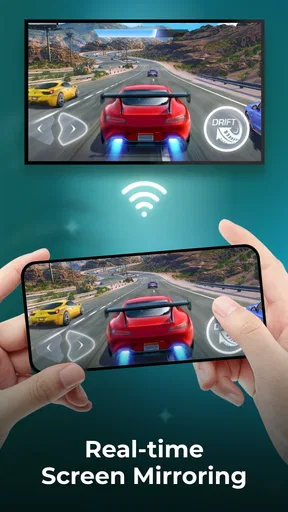
That context matters because “cast” can describe different things. Sending a video file to a TV is not always the same experience as mirroring the entire phone display. The former is usually the better fit for settling in to watch a clip, while mirroring is useful when you need to show an app, a webpage, or a sequence of screens. I would choose the method based on the task instead of assuming one mode is best for everything.
How it fits into a phone-and-TV routine
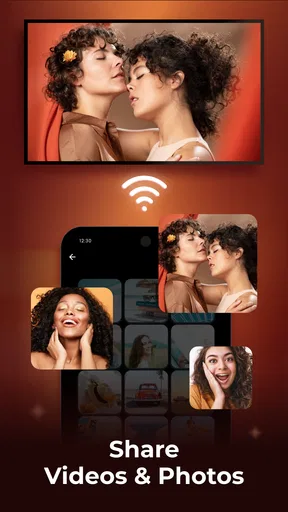
A realistic use is sharing a batch of holiday pictures after dinner. Rather than passing a phone around and asking everyone to crowd close, I’d connect to the television, open the images, and let the group see them at a comfortable size. For a short clip, casting is similarly handy: you can keep the phone in hand for choosing what comes next while the TV does the viewing. These are modest jobs, but they are precisely where a casting app can save hassle.
Before starting, I’d check that the phone and television are on the same Wi-Fi network and that the TV is ready to receive a connection. This small habit is more useful than repeatedly tapping a device name when nothing appears. If the TV is used by several people or has multiple input and network settings, confirming those basics first can prevent the app from being blamed for a connection problem that begins elsewhere.
There is also a useful distinction between showing and watching. Mirroring is a natural choice for a quick demonstration, such as walking someone through a page or displaying a phone app. For a long viewing session, I would rather cast the media itself when that option is available, since keeping the entire phone screen visible can make notifications or other phone activity part of the presentation. A little preparation—turning on a suitable focus setting and opening the right content before connecting—can make mirroring feel much more deliberate.
Worth Reading Before You Choose

EA SPORTS FC Mobile 26 Is a Bigger Football Game, but It Takes Time

Flipboard Shows What News Apps Must Do Beyond the Feed

Switching to Android Auto Means Rethinking Your Driving Routine

Google Calendar Makes a Crowded Week Easier to Manage

Ludo King Makes the Most of the Minutes Between Plans

Baby Panda World Brings Quick Play to Modern Phones, but Its Game Library Feels Busy
Where it stands among casting choices
Many people already have a route to the TV: a built-in casting button in a media app, the television maker’s own software, or a streaming device’s companion tools. Those options can be more convenient when they already handle the exact service or device you use. This app makes more sense when you want a phone-centered place to start, especially for personal photos and videos that are not already playing inside a streaming service.
The trade-off is that a general casting tool has to work across a varied mix of phones, TVs, and home networks. A television’s own app may offer tighter integration, while a service’s native cast control may be the simpler path for that service’s content. I would keep those routes available rather than treating this as the only way to reach a big screen. If your main goal is watching subscription content, starting in the service’s own app is often the more direct choice.
For people comparing options, the app has an average rating of 4.1 from around 14,000 ratings, with roughly 900 written reviews and over a million installs. Those figures suggest it has found a sizeable audience, but they cannot promise that every television combination will behave the same way. I’d use that reception as a reason to consider trying it, then judge it by how reliably it finds the devices in your own home.
What to check before relying on it
The most important question is compatibility with the television or streaming device you actually own. The product is aimed at smart TVs and Fire TV, but the everyday test is whether your particular devices can see one another on your network. If you are setting it up for a meeting, class, or family gathering, I would test the connection beforehand rather than making the first attempt while people are waiting. That is sensible with any casting setup, not a special flaw, but it matters more when timing does.
Network conditions can affect the experience, too. A weak or congested Wi-Fi connection may make a wireless handoff less satisfying than playing directly on the TV. If a video stutters, I’d first bring the phone closer to the router or check whether the TV has a stable connection, then try again. For a one-off clip, that small check may be enough; for a critical presentation or uninterrupted long session, a wired connection or a device’s built-in playback option may be the safer choice.
There are also practical reasons to skip phone mirroring. Some content is best watched through its official television app, and a phone screen is not always the ideal source for a long film or high-stakes presentation. If you need precise controls, predictable playback, or a setup that works without depending on a phone remaining active, a dedicated player or the TV’s own interface may suit you better. I see this app as a convenient bridge, not a universal answer to home entertainment.
How it has developed, and what I’d watch next
The app was released on February 10, 2023, and its current version is 1.7.7. Those facts establish a product that has continued to a numbered release, but they do not by themselves tell me which capabilities changed between versions. I would avoid assuming a particular new feature or improvement from the version number alone. For existing users, the practical approach is to check the installed version and update through the normal app-store process when an update is available.
What I would watch in future use is not a promised feature list but the basics that make a casting tool worth keeping: whether it finds the devices I actually use, whether reconnecting stays straightforward, and whether playback remains dependable in the rooms where I watch. Those are the details that matter more to me than a long menu of options. If the app continues to make ordinary photo and video sharing less awkward, it has a clear role; if your built-in TV tools already do that effortlessly, there may be little reason to add another step.
Overall, I’d recommend giving it a try if you regularly want to move phone media onto a compatible television and prefer a single casting helper over juggling several device menus. It is especially suited to casual sharing and quick demonstrations, where convenience matters more than a complex home-theater setup. The free starting point lowers the commitment, though the in-app purchases are worth keeping in mind before paying for anything. If your priority is guaranteed playback for a formal event, a particular streaming service, or a long movie night, test your setup first and keep the TV’s native options as a backup.
Getting Started with Ease
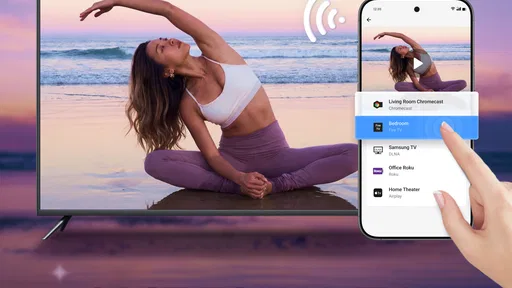
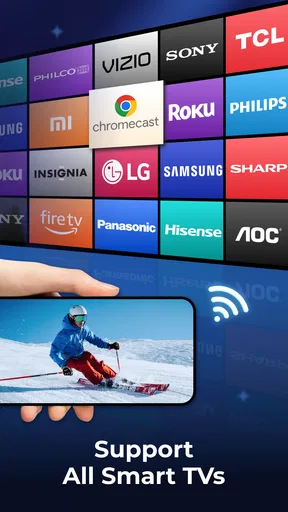
First things first, setting up Cast to TV - Screen Mirroring is a breeze. After downloading it from the app store, you’ll be guided through a straightforward setup process. The app supports a plethora of devices, including smart TVs, streaming devices like Chromecast, and even gaming consoles. As long as your device and TV are on the same Wi-Fi network, you're in business.
There’s something incredibly satisfying about not having to fiddle with cables or adapters. The app makes wireless streaming a piece of cake. You just open the app, select your device, and boom—you're ready to start casting. It’s like magic, but better, because it’s real.
Features That Stand Out
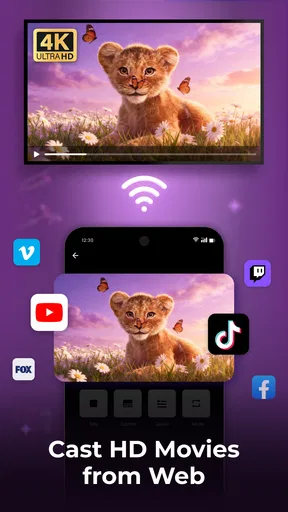
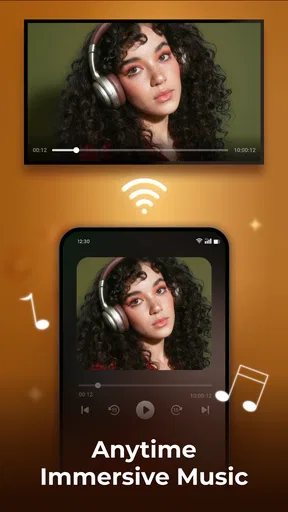
Okay, so what can you cast? Pretty much everything. Photos, videos, music—you name it. The app supports a wide range of file formats, so you’re not left converting files or dealing with compatibility issues. It even has a built-in browser, which means you can stream online content directly to your TV. This feature is a game-changer for those spontaneous YouTube marathons or when you stumble across a must-see video on the web.
What really caught my attention was the screen mirroring feature. It’s perfect for presentations or if you simply want to use your TV as a second screen. The mirroring is smooth with minimal lag, which is essential if you’re using it for real-time applications like gaming or video calls.
User-Friendly Interface
Now, let’s talk about the interface. The design is clean and intuitive, which is a huge plus. You don’t want to spend half your time figuring out where to tap next. The developers clearly put a lot of thought into making the app accessible for everyone, whether you’re a tech newbie or a seasoned gadget enthusiast.
Navigation is a walk in the park, with everything laid out in a logical manner. The app doesn’t bombard you with ads, which is a refreshing change in a world where free apps often come with a catch. Here, the focus is squarely on functionality and user experience.
Performance and Reliability
Performance-wise, Cast to TV - Screen Mirroring doesn’t disappoint. The connection is stable, and the streaming quality is top-notch. I didn’t encounter any buffering or dropped connections during my testing, which speaks volumes about the app’s reliability.
It’s worth mentioning that the app doesn’t consume a ton of battery, which is a relief. You can enjoy extended streaming sessions without worrying about your phone dying midway through your favorite movie.
The Final Verdict
In summary, Cast to TV - Screen Mirroring is an excellent choice if you’re looking to enhance your viewing experience. It’s packed with features, easy to use, and performs like a champ. Whether you’re showcasing vacation photos or streaming a blockbuster, this app delivers.
If you're tired of squinting at your phone screen and want to bring your media to life on the big screen, give this app a whirl. It’s free to download, so there’s nothing to lose. You might just find it becomes your new favorite app.
Pros
- Easy setup with user-friendly interface.
- Compatible with a wide range of devices.
- Supports multiple media formats.
- High-quality video and audio streaming.
- Regular updates improve performance.
Cons
- Requires stable Wi-Fi for optimal use.
- Ads can be intrusive during use.
- Limited free features available.
- May experience occasional lag.
- Not all devices are supported.
FAQs for Cast to TV - Screen Mirroring
What devices are compatible with Cast to TV - Screen Mirroring?
Cast to TV - Screen Mirroring is compatible with a variety of devices, including Smart TVs, Chromecast, Roku, Fire TV, and gaming consoles like Xbox and PlayStation. It also supports Android and iOS smartphones and tablets. Ensure your device and the TV are connected to the same Wi-Fi network for optimal performance.
How do I set up Cast to TV - Screen Mirroring for the first time?
To set up Cast to TV - Screen Mirroring, first download the app from the Google Play Store or Apple App Store. Open the app and connect your smartphone to the same Wi-Fi network as your TV. Follow the on-screen instructions to link your device to the TV. Ensure that both devices are compatible for smooth operation.
Are there any subscription fees or in-app purchases?
Cast to TV - Screen Mirroring offers a free version with basic features. However, to access ad-free streaming and additional functionalities such as high-definition mirroring, you may need to purchase a subscription or make in-app purchases. Check the app's store page for detailed pricing information.
What should I do if my screen mirroring is lagging or not working?
If you experience lagging or issues with screen mirroring, ensure both your device and TV are on the same Wi-Fi network. Restart both devices to clear any temporary glitches. Check for app updates and install them to improve functionality. If problems persist, consult the app's help section for troubleshooting tips.
Is Cast to TV - Screen Mirroring safe to use?
Yes, Cast to TV - Screen Mirroring is safe to use. It adheres to standard privacy policies, ensuring that your data is not shared without consent. However, always download the app from official stores and keep your software updated to protect against vulnerabilities. Review the app's privacy policy for more details.


